
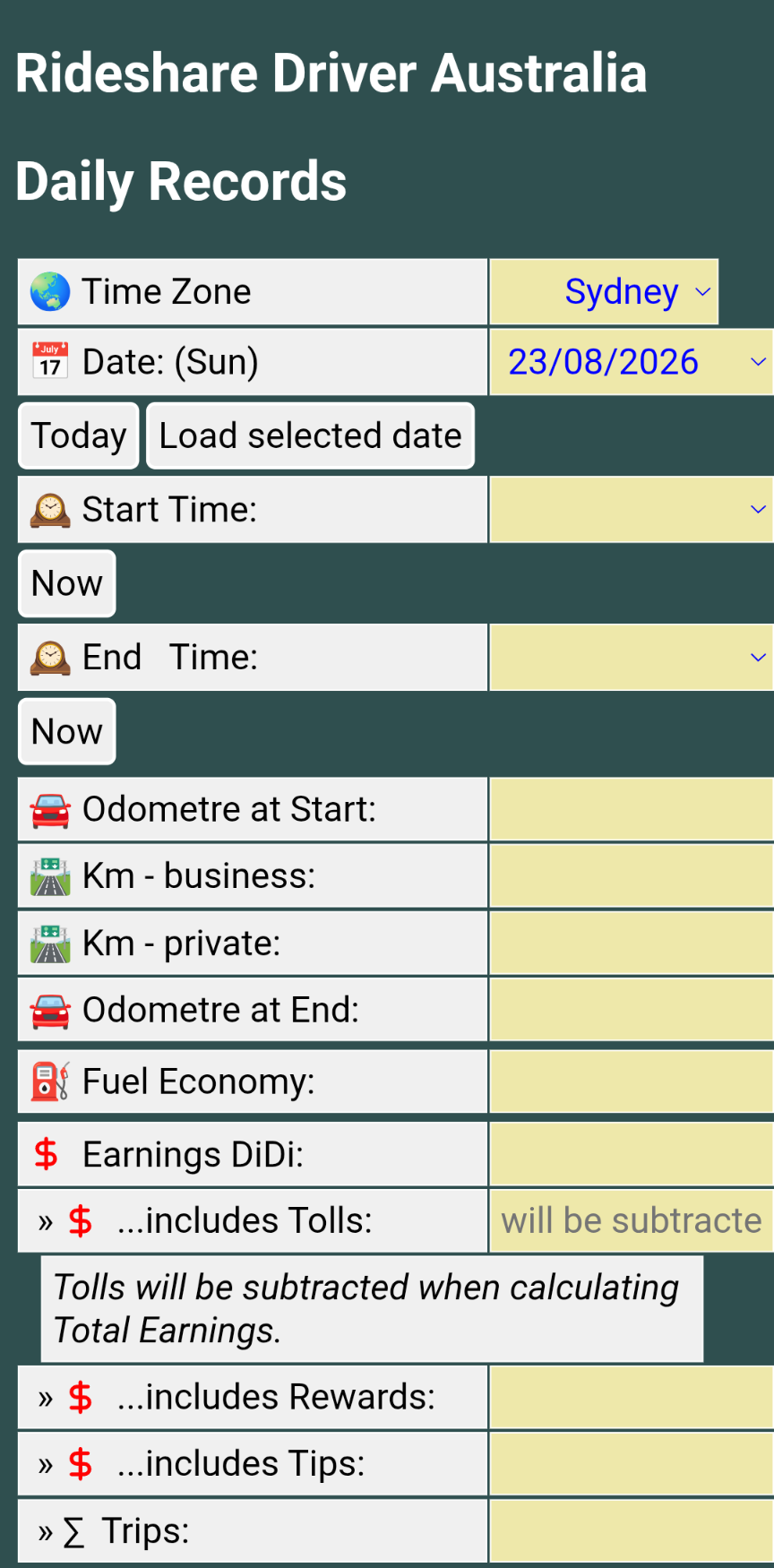
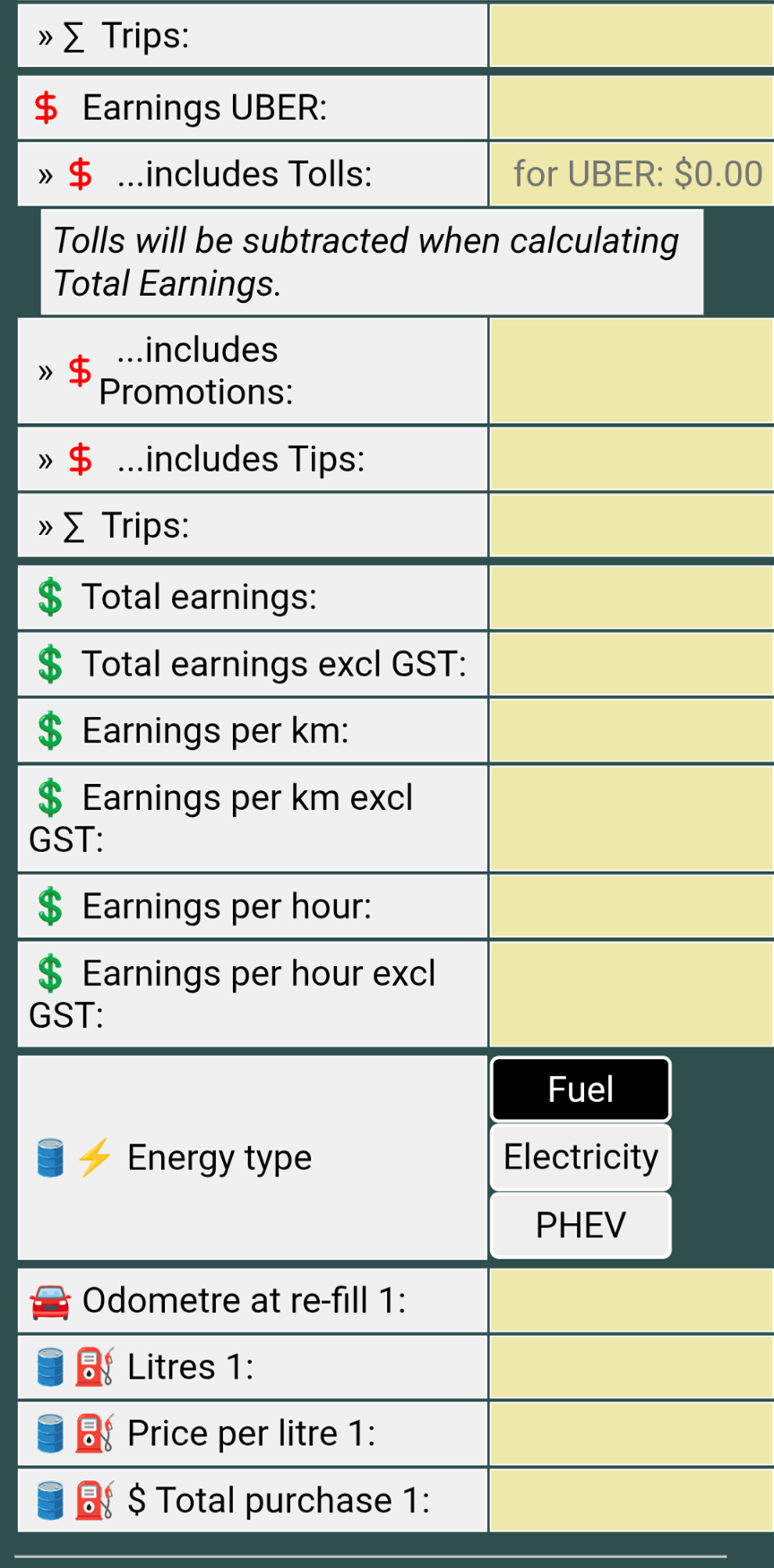
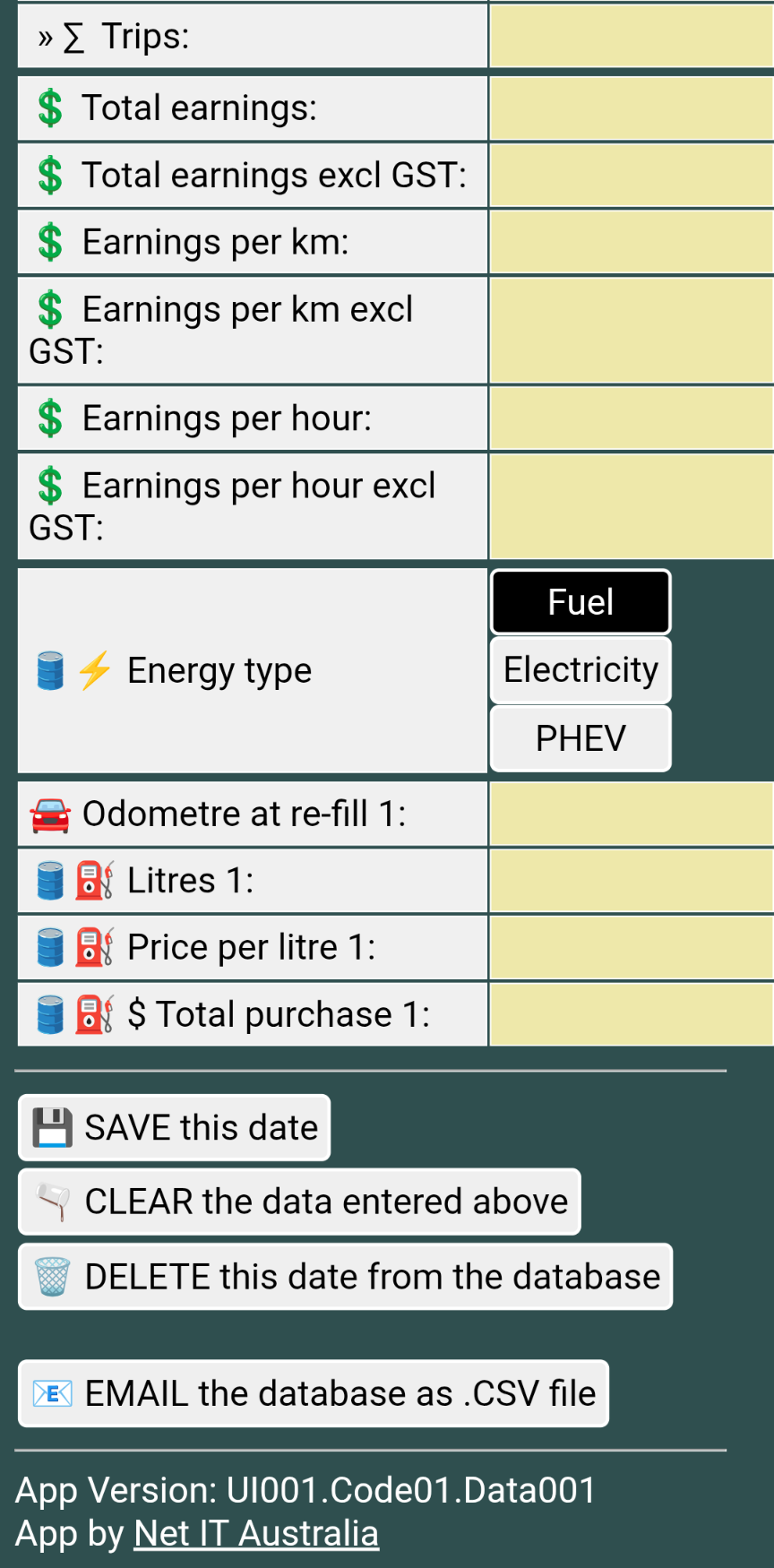
Screen Shots of the PWA
Screen 1 of 3
Screen 2 of 3
Screen 3 of 3
Installing a PWA on a mobile device
Install on Android using Chrome Browser
Open Google Chrome
1️⃣ Navigate to the site
Ensure Incognito Mode is off
Open Google Chrome and go to the web app you want to install. Make sure you are not in Incognito mode, as PWA installation is blocked in private tabs.
2️⃣ Open the options menu
Tap the three-dot menu icon (⋮) in the top-right corner of the browser.
3️⃣ Select Install
Tap Install app or Add to Home screen (the phrasing depends on whether the site supports direct WebAPK installation).
4️⃣ Confirm installation
A confirmation dialog will appear. Tap Install (or Add) to confirm. The app icon will now appear in your device's App Drawer and Home Screen.
Install on iPhone using Safari Browser
Open Safari.
1️⃣ Go to the PWA's website.
2️⃣ Tap the Share button.
3️⃣ Scroll down and tap Add to Home Screen.
4️⃣ Turn Open as Web App ON.
5️⃣ Tap Add.
An icon will appear on your iPhone Home Screen. Tapping it opens the site as an app rather than as an ordinary Safari tab.
6️⃣ If "Add to Home Screen" isn't visible:
7️⃣Scroll to the bottom of the Share menu.
8️⃣Tap Edit Actions.
9️⃣ Add "Add to Home Screen" to the available actions.
An icon will appear on your iPhone Home Screen. Tapping it opens the site as an app rather than as an ordinary Safari tab.